Create a Response or Closing Sequence
This section guides you through the process of creating a response or closing sequence for an existing submission of a Health Product Application (HPA).
Prerequisites
Before beginning a response or closing sequence, ensure you have:
- The application ID of the existing registered product
- The submission number of the existing submission
Creating a Response or Closing Sequence
Log in to the SAHPRA portal.
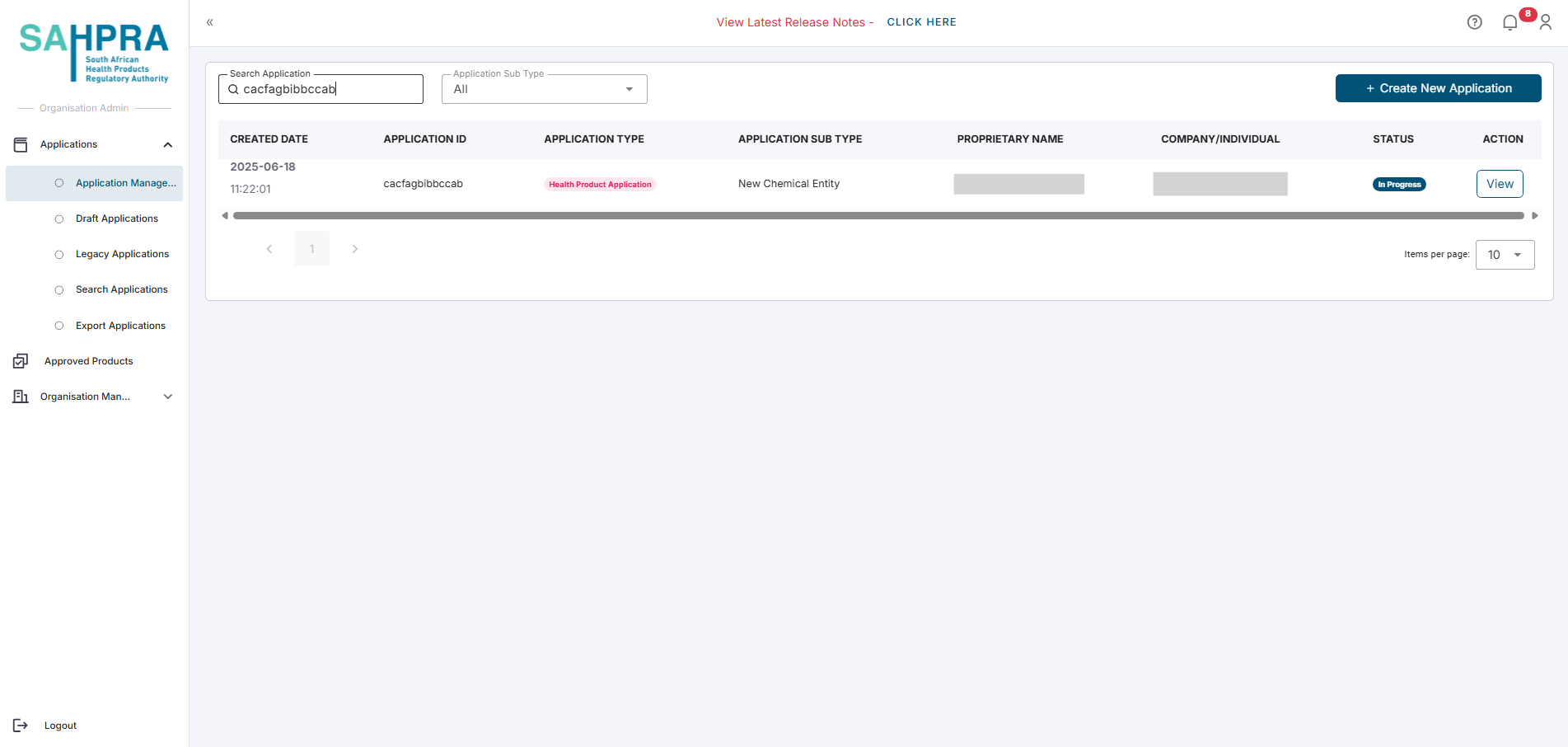
Navigate to the Applications Management dashboard and select the application you wish to create a sequence for.
Click on the View button to the right of the application.
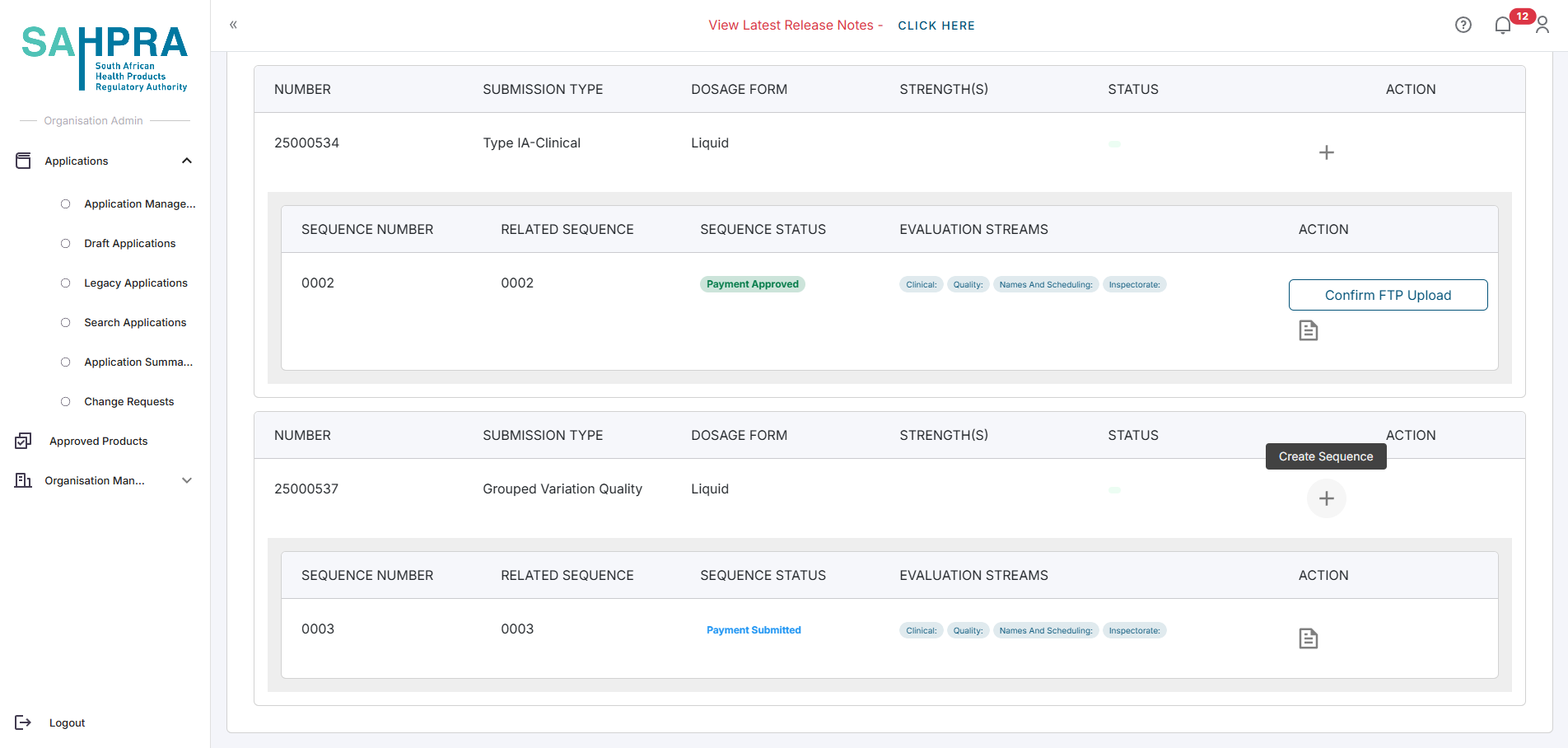
Find the submission you wish to create a sequence for and click on the + icon next to the submission.
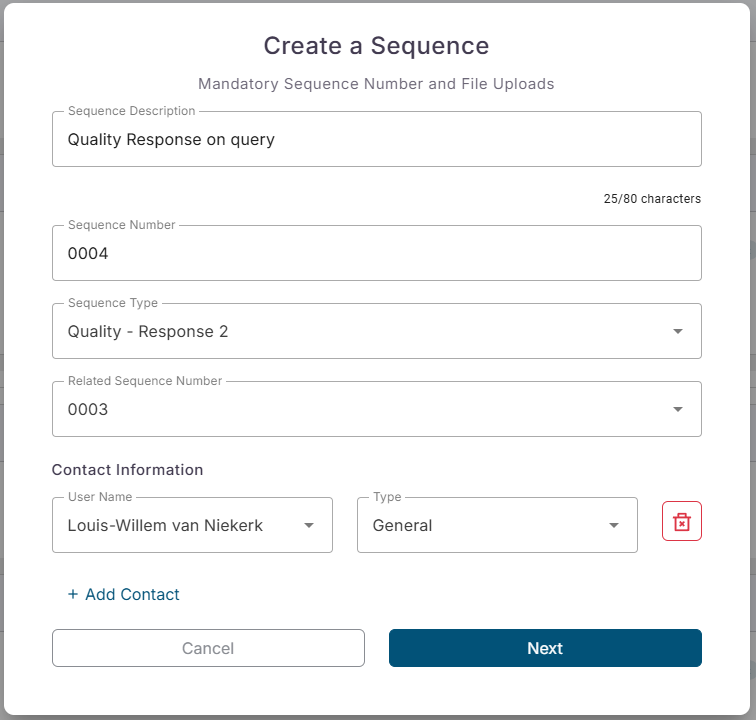
Once opened, the relevant details for the sequence can be selected. Note that the Sequence Number is automatically selected. Make sure to select the relevant Sequence Type depending on the sequence you are creating.The Contacts added to the sequence will receive all notifications and updates related to it, and the selected contacts must be registered in your organisation, otherwise they will not be listed as one of the contacts and cannot be added to the sequence.
The sequence number will be automatically selected based on the previous sequence number. Make sure to select the current submission’s first sequence number as the related sequence number.
The image below is an example of a quality response 2 sequence. Make sure to select the relevant Sequence Type depending on the sequence you are creating.
Payment Processing
- Once exiting the popup, the sequence will be created and a Eye Icon view order button will appear in the created sequence.
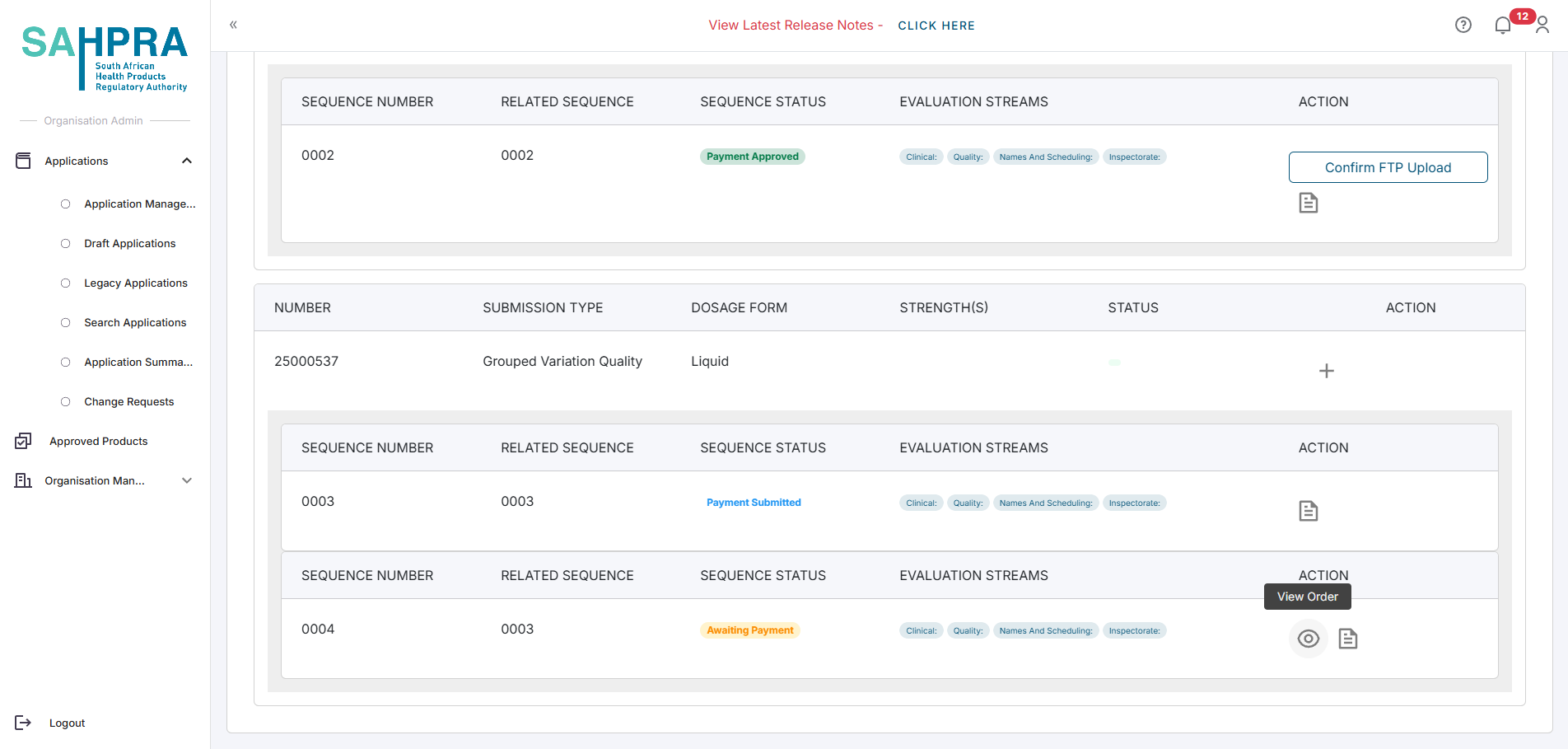
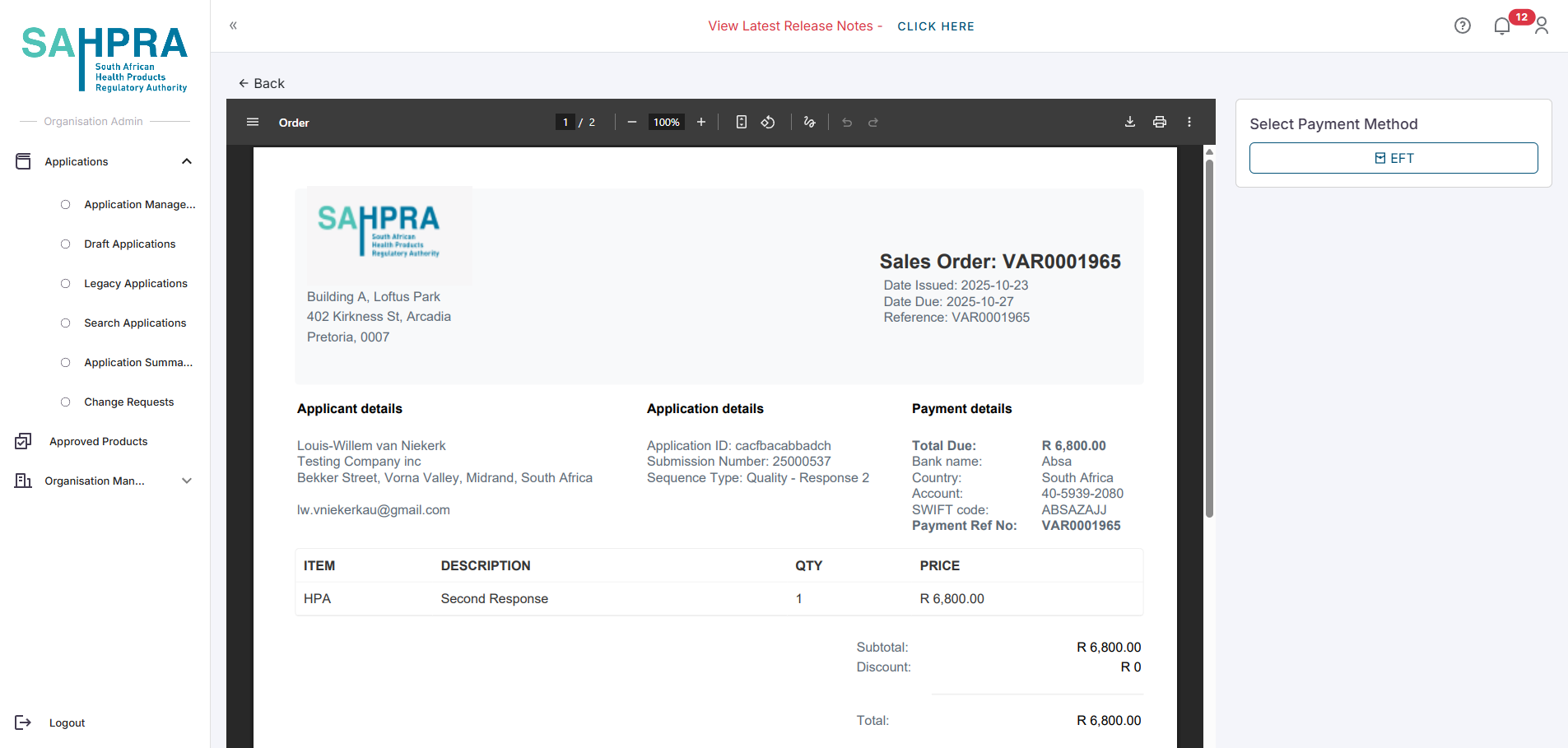
- The View Order button will show the generated order based on the application made and will contain the amount payable to SAHPRA. If the submission has no payment required, click on the View Order button and a notice will appear that no payment is required.
- You can upload the Proof of Payment by selecting EFT, uploading the Proof of Payment and clicking on Submit Proof. Note after this submission the application will be deemed as submitted and no changes can be made to the application after this action is taken.
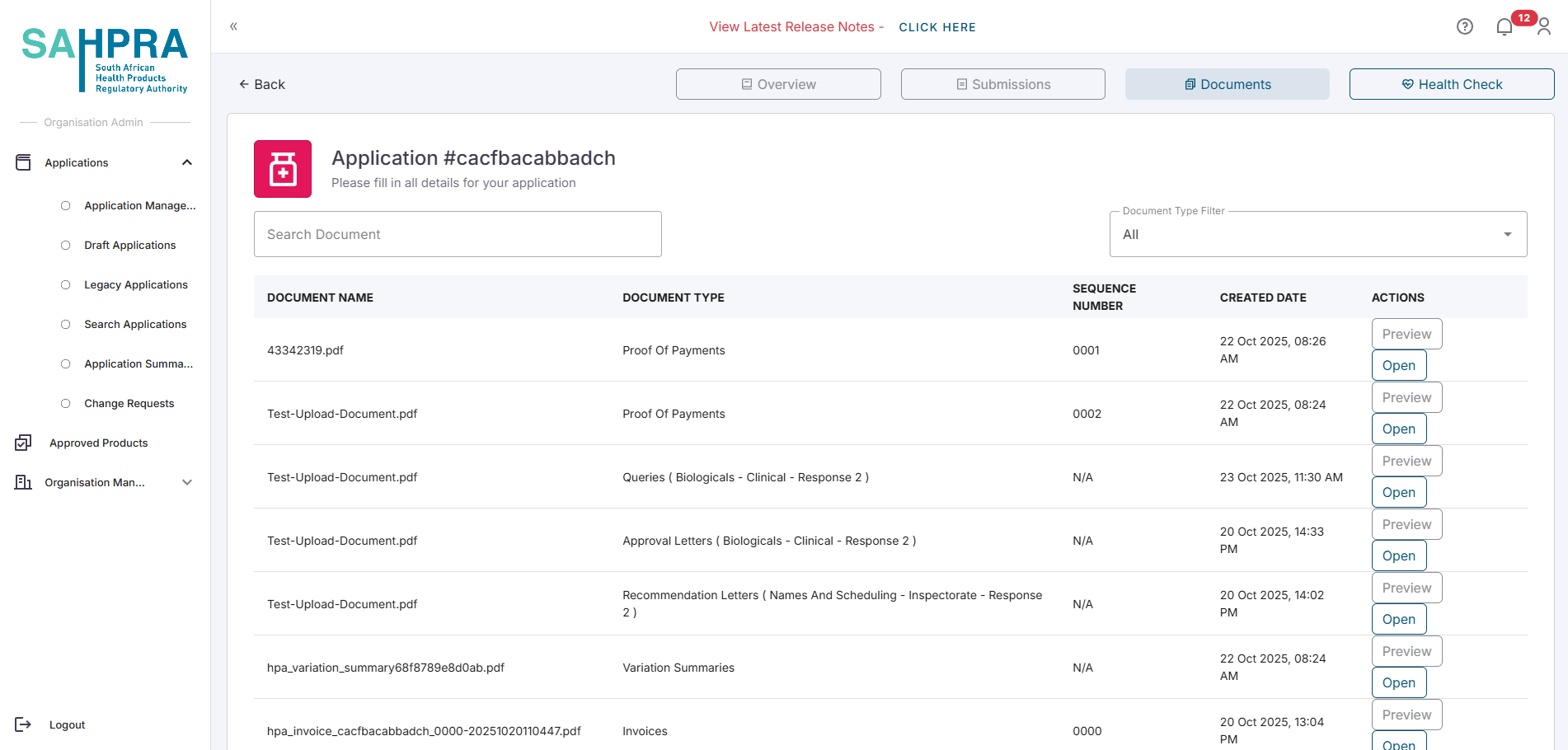
- You invoice and proof of payment will be accessible in the Documents tab of the application.
- Before making a payment, please view the latest Invoice for the sequence and use the Invoice Number as the beneficiary reference number on the proof of payment.