Account Registration (Organisation & Individual)
This section guides you through the process of registering a new account on the SAHPRA portal. Both individuals and organisations will use this unified registration process.
- Note on Organisation Registration: When signing up an organisation for the first time, the user who registers will automatically become the Organisation Administrator. It is critical that an organisation is only registered once using its correct Registration Number. This uniquely identifies the organisation and enables the system to import legacy data.
- Existing Organisations: If an organisation has already been registered with your entered Registration Number, a popup will appear alerting you. You must contact the existing Organisation Administrator (whose masked email will be displayed on the popup) to request an invitation to join the organisation as an Employee or Administrator.
Step 1: Access the Login Page
- Navigate to the SAHPRA portal login page at https://portal.sahpra.org.za/login.
- Click on the “Create an account” link at the bottom of the login form.
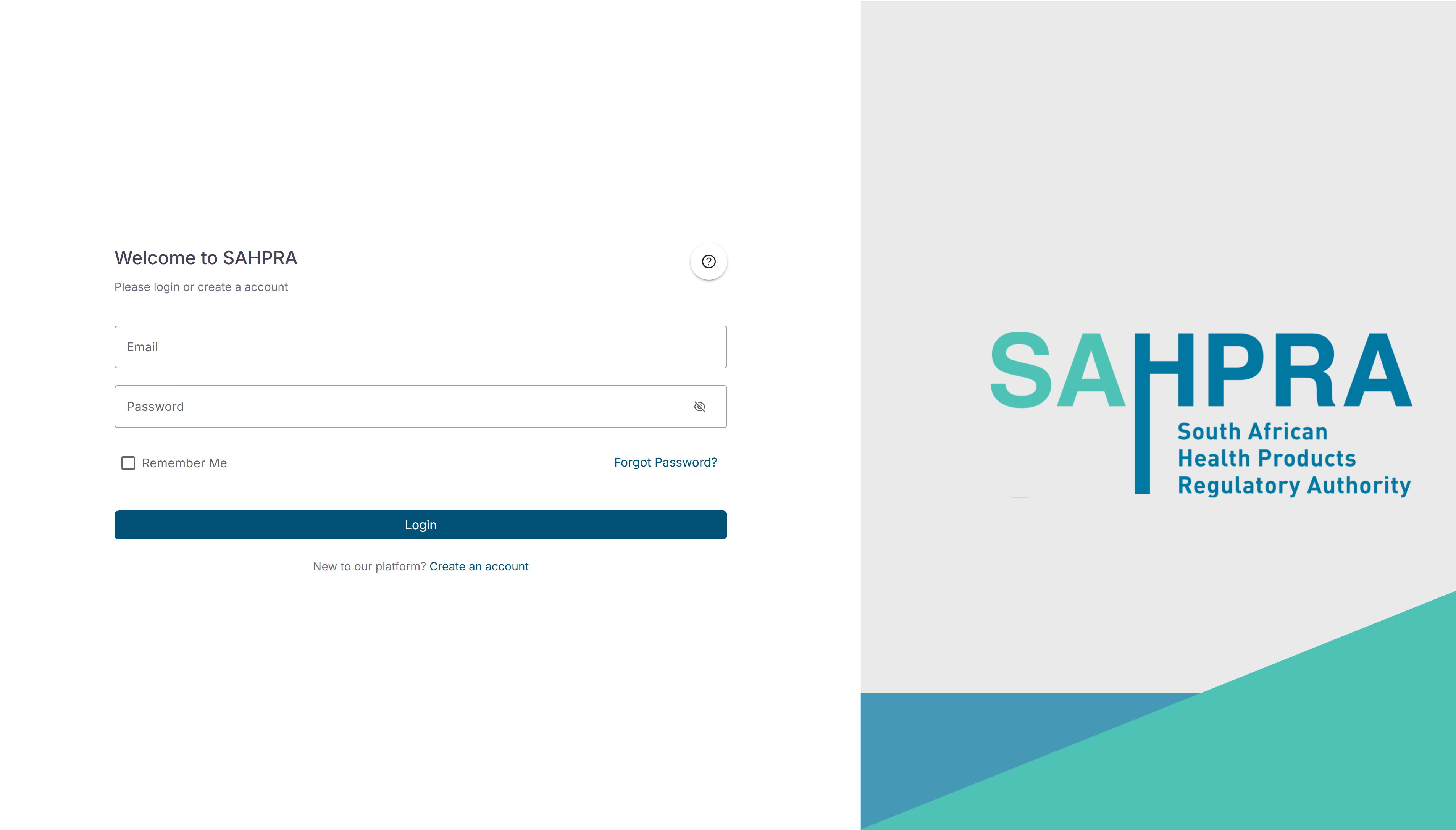
Step 2: Registration Information
The registration form has been streamlined into a single page where you will provide both the application context and your user details.
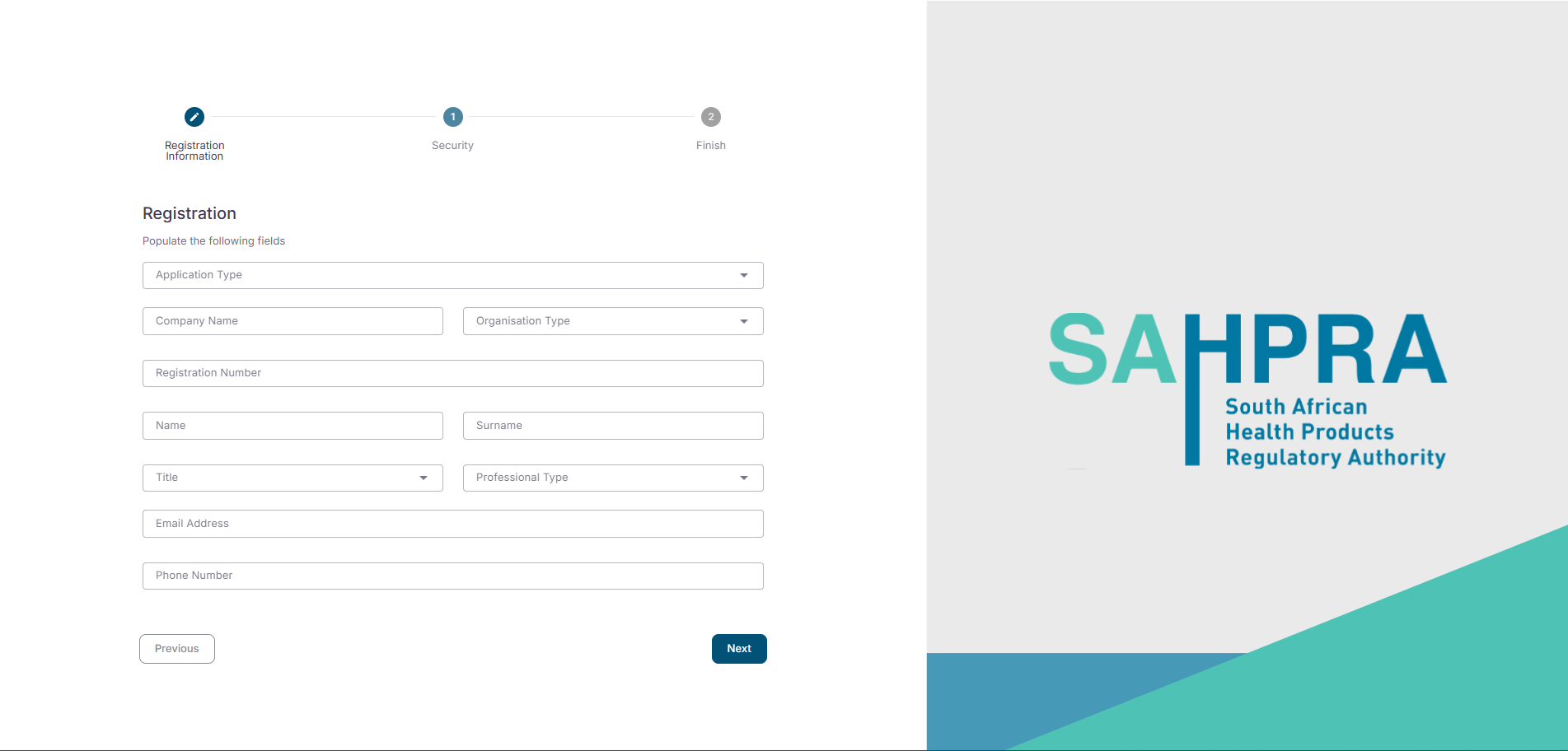
- Application Type: Select the type(s) of applications you will be working with from the dropdown (e.g., Clinical Trial Application, Health Product Application, Section 21). Note: This is a multi-select field. It is crucial to select all applicable options, as this directly determines your access permissions and the features available to you on the portal.
- Company Name: Enter the official name of the company or institution. (If registering as an individual, you may leave this blank or enter your own name depending on system prompts).
- Organisation Type: Select the classification that best describes your entity from the dropdown (e.g., SA Registered Company, Non-Profit Organisation, Laboratory).
- Note for Individual Applicants: To register as an independent applicant not affiliated with a company, select Private Individual from this dropdown list.
- Registration Number: Enter your unique identifier. Note: The format and validation for this field will automatically adjust based on the “Organisation Type” you selected.
- Duplicate Registration Alert: If the system detects that this registration number is already in use, an “Organisation Already Registered” popup will appear. Click “Understood” and email the masked administrator address provided on the screen to request access.
- Personal Details: Complete the remaining fields with your personal information:
- Name
- Surname
- Title
- Professional Type
- Email Address
- Phone Number
- Click Next to proceed to the Security step.
Step 3: Security (Set Password)
- Enter your desired Password. To ensure your account is secure, the password must meet the following criteria:
- Contain at least 8 characters
- Include at least one uppercase letter
- Include at least one lowercase letter
- Include at least one number
- Include at least one special character
- Confirm your Password by entering it again in the second field.
- Read the Terms and Conditions by clicking on the designated link.
- Check the box to accept the Terms and Conditions.
- Click Next to finish your registration form.
Step 4: Finish & Email Verification
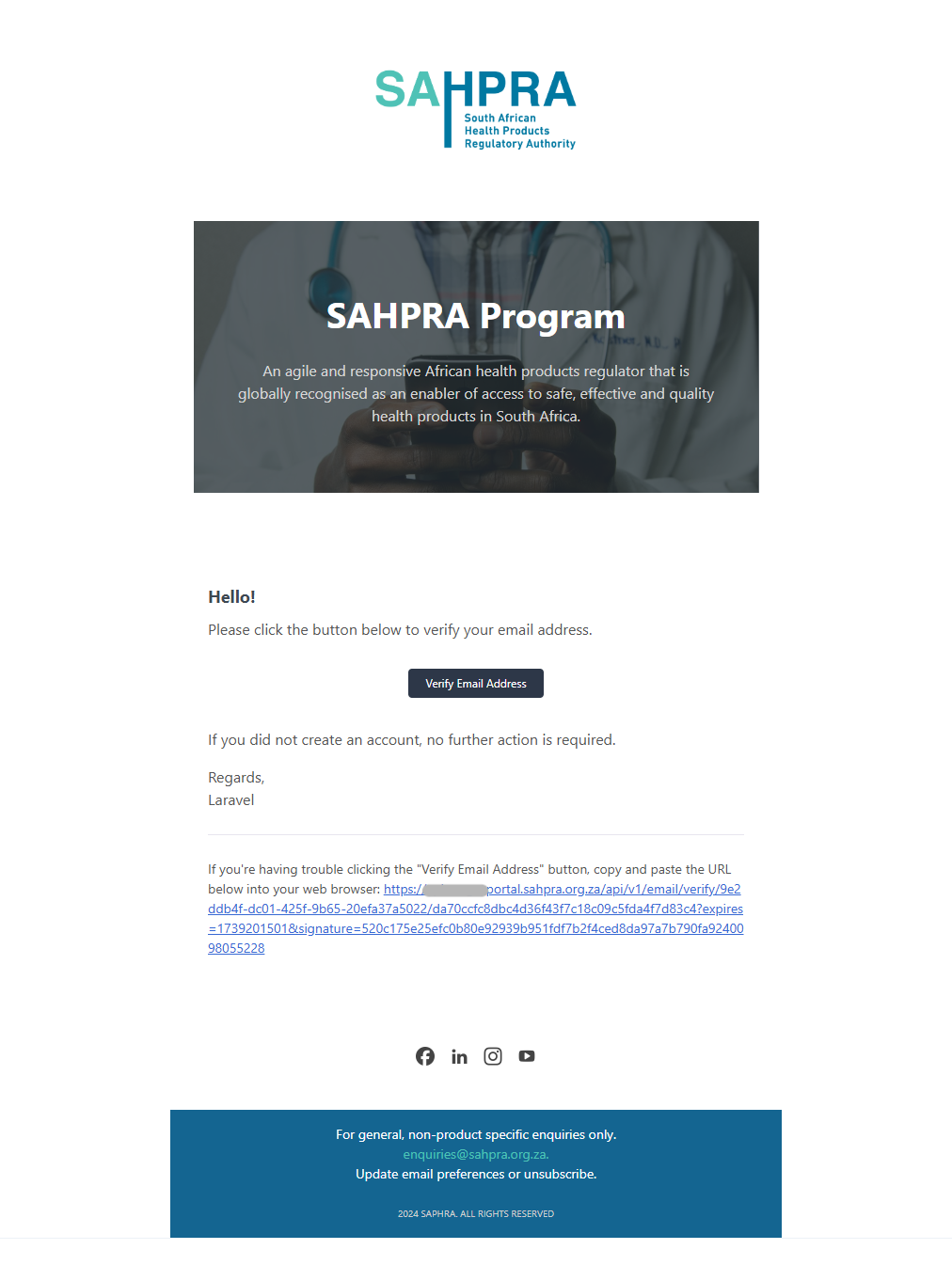
- Check your email inbox for a verification message from SAHPRA.
- Click the verification link provided in the email to authenticate your account.
- Once verified, return to the SAHPRA portal login page and log in using your newly created credentials.
Tips for Successful Registration
- Ensure all personal and organisation information is accurate and matches your official legal documents.
- Use a professional email address that you check regularly, as this will be your primary communication method with SAHPRA.
- Keep your registration number, Proof of Profession, and other supporting documents handy before starting.
- Create a strong, unique password and store it securely.
- If you don’t receive a verification email within 15 minutes, check your spam or junk folders.
- If you encounter issues during registration, contact SAHPRA support for assistance.